If you need some help setting up a Kubernetes environment to experiment with the operator, please read on! The supported environments are either an on-premises installation of Kubernetes, for example, on bare metal, or on a cloud provider like Oracle Cloud,
Microsoft Azure
, Google, or Amazon. Cloud providers allow you to provision a managed Kubernetes environment from their management consoles. You could also set up Kubernetes manually using compute resources on a cloud. There are also a number of ways to run a Kubernetes single-node cluster that are suitable for development or testing purposes. Your options include:
“Production” options:
Set up your own Kubernetes environment on bare compute resources on a cloud.
Use your cloud provider’s management console to provision a managed Kubernetes environment.
Install Kubernetes on your own compute resources (for example, “real” computers, outside a cloud).
For example, on Oracle Linux servers outside a cloud.
These instructions are for Oracle Linux 7u2+. If you are using a different flavor of Linux, you will need to adjust them accordingly.
Note
These steps must be run with the root user, until specified otherwise! Any time you see YOUR_USERID in a command, you should replace it with your actual userid.
Choose the directories where your Docker and Kubernetes files will be stored. The Docker directory should be on a disk with a lot of free space (more than 100GB) because it will be used for the /var/lib/docker file system, which contains all of your images and containers. The Kubernetes directory will be used for the /var/lib/kubelet file system and persistent volume storage.
$ export docker_dir=/scratch/docker
$ export k8s_dir=/scratch/k8s_dir
Create a shell script that sets up the necessary environment variables. You should probably just append this to the user’s .bashrc so that it will get executed at login. You will also need to configure your proxy settings here if you are behind an HTTP proxy:
#!/bin/bash
export PATH=$PATH:/sbin:/usr/sbin
pod_network_cidr="10.244.0.0/16"k8s_dir=$k8s_dir
## grab my IP address to pass into kubeadm init, and to add to no_proxy vars# assume ipv4 and eth0ip_addr=`ip -f inet addr show eth0 | egrep inet | awk '{print $2}' | awk -F/ '{print $1}'\`export HTTPS_PROXY=http://proxy:80
export https_proxy=http://proxy:80
export NO_PROXY=localhost,127.0.0.1,.my.domain.com,/var/run/docker.sock,$pod_network_cidr,$ip_addr
export no_proxy=localhost,127.0.0.1,.my.domain.com,/var/run/docker.sock,$pod_network_cidr,$ip_addr
export HTTP_PROXY=http://proxy:80
export http_proxy=http://proxy:80
export KUBECONFIG=$k8s_dir/admin.conf
Source that script to set up your environment variables:
$ . ~/.bashrc
If you want command completion, you can add the following to the script:
Congratulations! Docker and Kubernetes are installed and configured!
Install Docker for Mac with Kubernetes
Docker for Mac 18+ provides an
embedded Kubernetes environment
that is a quick and easy way to get a simple test environment set up on your Mac. To set it up, follow these instructions:
Install “Docker for Mac”
https://download.docker.com/mac/edge/Docker.dmg
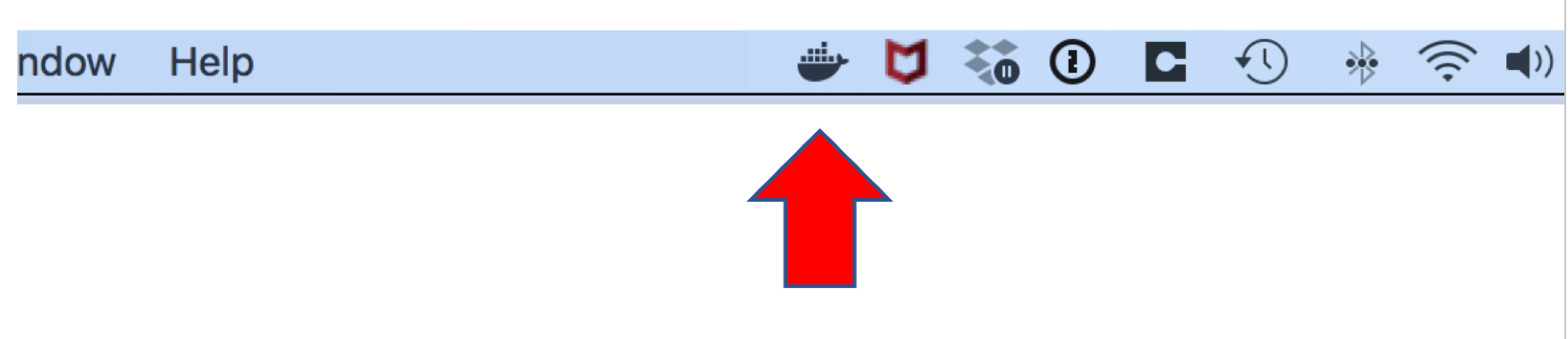
. Then start up the Docker application (press Command-Space bar, type in Docker and run it). After it is running you will see the Docker icon appear in your status bar:
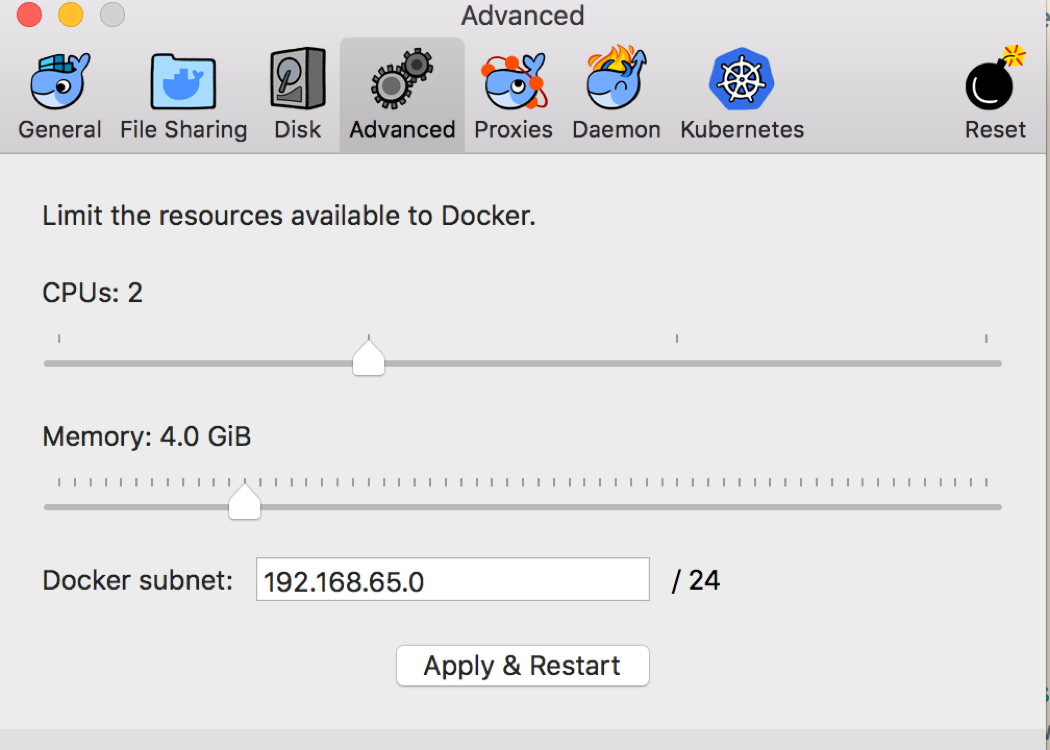
Click the Docker icon and select “Preferences…” from the drop down menu. Go to the “Advanced” tab and give Docker a bit more memory if you have enough to spare:
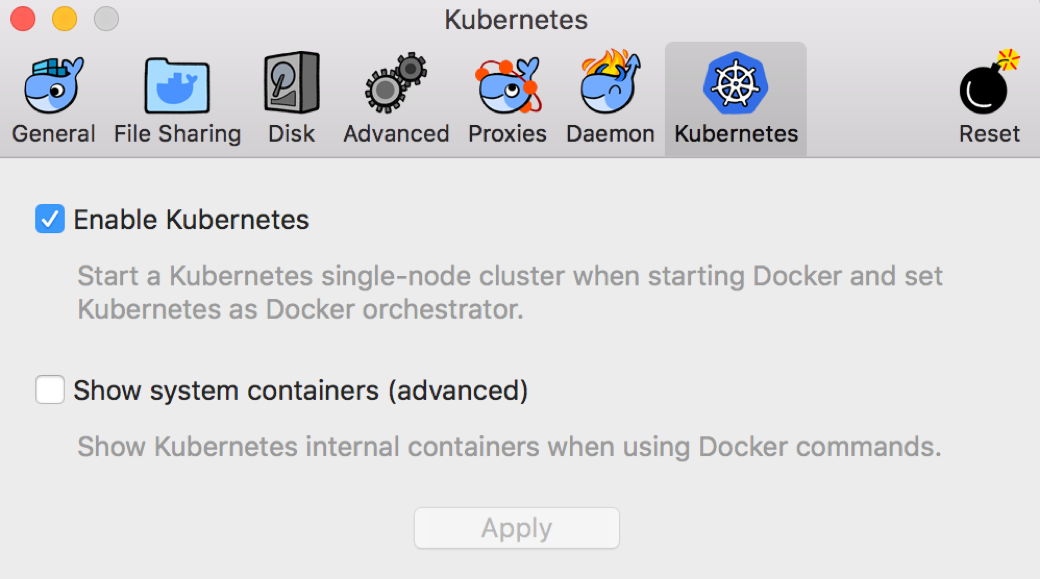
Go to the “Kubernetes” tab and click on the option to enable Kubernetes:
Note
If you are behind an HTTP proxy, then you should also go to the “Proxies” tab and enter your proxy details.
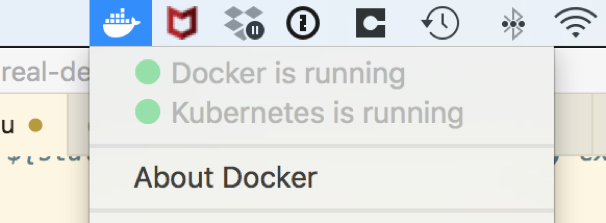
Docker will download the Kubernetes components and start them up for you. When it is done, you will see the Kubernetes status go to green/running in the menu:
Ensure that kubectl on your Mac, is pointing to the correct cluster and context.
$ kubectl config get-contexts
CURRENT   NAME                          CLUSTER                      AUTHINFO             NAMESPACE
          docker-for-desktop            docker-for-desktop-cluster   docker-for-desktop
          kubernetes-admin@kubernetes   kubernetes                   kubernetes-admin
You should add docker-for-desktop to your /etc/hosts file entry for 127.0.0.1, as shown in this example, and you must be an admin user to edit this file:
##
# Host Database
#
# localhost is used to configure the loopback interface
# when the system is booting.  Do not change this entry.
##
127.0.0.1	localhost docker-for-desktop
255.255.255.255	broadcasthost
::1             localhost
You may also have to tell kubectl to ignore the certificate by entering this command:
Then validate you are talking to the Kubernetes in Docker by entering these commands:
$ kubectl cluster-info
Kubernetes master is running at https://docker-for-desktop:6443

To further debug and diagnose cluster problems, use 'kubectl cluster-info dump'.
Important note about persistent volumes
Warning
Docker for Mac has some restrictions on where you can place a directory that can be used as a HostPath for a persistent volume. To keep it simple, place your directory somewhere under /Users.