Walkthrough
Details
This walkthrough will guide you through a basic installation of the Oracle AI Optimizer and Toolkit (the AI Optimizer). It will allow you to experiment with GenAI, using Retrieval-Augmented Generation (RAG) and Natural Language to SQL (NL2SQL) with the Oracle AI Database at the core.
By the end of the walkthrough you will be familiar with:
- Configuring a Language Model
- Configuring an Embedding Model
- Configuring the Vector Storage
- Splitting, Embedding, and Storing vectors
- Experimenting with the AI Optimizer
What you’ll need for the walkthrough:
- Internet Access (docker.io and container-registry.oracle.com)
- Access to an environment where you can run container images (Podman or Docker).
- 100G of free disk space.
- 12G of usable memory.
- Sufficient GPU/CPU resources to run the language model, embedding model, and database (see below).
Performance: A Word of Caution
The performance will vary depending on the infrastructure.
Language and Embedding Models are designed to use GPUs, but this walkthrough can work on machines with just CPUs; albeit much slower! When testing the Language Model, if you don’t get a response in a couple of minutes; your hardware is not sufficient to continue with the walkthrough.
Installation
Same… but Different
The documentation will reference podman commands. If applicable to your environment, podman can be substituted with docker.
If you are using docker, consider aliasing the podman command:
alias podman=docker.
You will run four container images to establish the “Infrastructure”:
- On-Premises Language Model - granite4.1:8b
- On-Premises Embedding Model - mxbai-embed-large
- Vector Storage - Oracle AI Database Free
- The AI Optimizer
Language Model - granite4.1:8b
To enable the ChatBot functionality, access to a Language Model is required. The walkthrough will use Ollama to run the granite4.1:8b model.
Start the Ollama container:
The Container Runtime is native. The command below makes all configured GPUs available; omit
--gpus=allwhen running with CPUs only.The Container Runtime is backed by a virtual machine. Configure the VM with at least 12G of memory and 100G of disk space. The Ollama container will use the CPUs assigned to the VM.
The Container Runtime is backed by a virtual machine. Configure the VM with at least 12G of memory and 100G of disk space. The LibKrun provider can expose the Apple Metal GPU to compatible container workloads, but does not by itself enable GPU acceleration for Ollama. The command below uses the CPUs assigned to the VM.
The Container Runtime is backed by a virtual machine using WSL2 or Hyper-V. Configure the VM with at least 12G of memory and 100G of disk space. GPU acceleration with an NVIDIA GPU requires WSL2, a compatible driver, and the NVIDIA Container Toolkit configured in the Podman machine. The command below is a CPU-safe default.
Pull the Language Model into the container:
Test the Language Model:
Performance: Fail Fast…
Unfortunately, if the below
curldoes not respond within 5-10 minutes, the rest of the walkthrough will be unbearable. If this is the case, please consider using different hardware.
Embedding - mxbai-embed-large
To enable the RAG functionality, access to an embedding model is required. The walkthrough will use Ollama to run the mxbai-embed-large embedding model.
Pull the embedding model into the container:
The AI Optimizer
The AI Optimizer provides an easy to use front-end for experimenting with Language Model parameters and RAG.
Download and Unzip the latest release of the AI Optimizer:
Build the Container Image
Note: MacOS Silicon users may need to specify
--arch amd64Start the AI Optimizer:
Vector Storage - Oracle AI Database Free
AI Vector Search in Oracle AI Database provides the ability to store and query private business data using a natural language interface. The AI Optimizer uses these capabilities to provide more accurate and relevant Language Model responses via Retrieval-Augmented Generation (RAG). Oracle AI Database Free provides an ideal, no-cost vector store for this walkthrough.
To start the Oracle AI Database Free:
Start the container:
Alter the
vector_memory_sizeparameter and create a new database user:Bounce the database for the
vector_memory_sizeto take effect:
Configuration
Operating System specific instructions:
If you are running on a remote host, you may need to allow access to the 8501 port.
For example, in Oracle Linux 8/9 with firewalld:
As the container is running in a VM, a port-forward is required from the localhost to the Podman VM:
This command does not return as it holds the tunnel open. Leave it running in its own terminal for the duration of the walkthrough, and open a new terminal for the remaining commands.
With the “Infrastructure” in-place, you’re ready to configure the AI Optimizer.
In a web browser, navigate to http://localhost:8501:

Notice that there are no language models configured to use. Let’s start the configuration.
Configure the Language Model
To configure the On-Premises Language Model, navigate to the Configuration screen and Models tab:
- Enable the
granite4.1:8bmodel that you pulled earlier by clicking the Edit button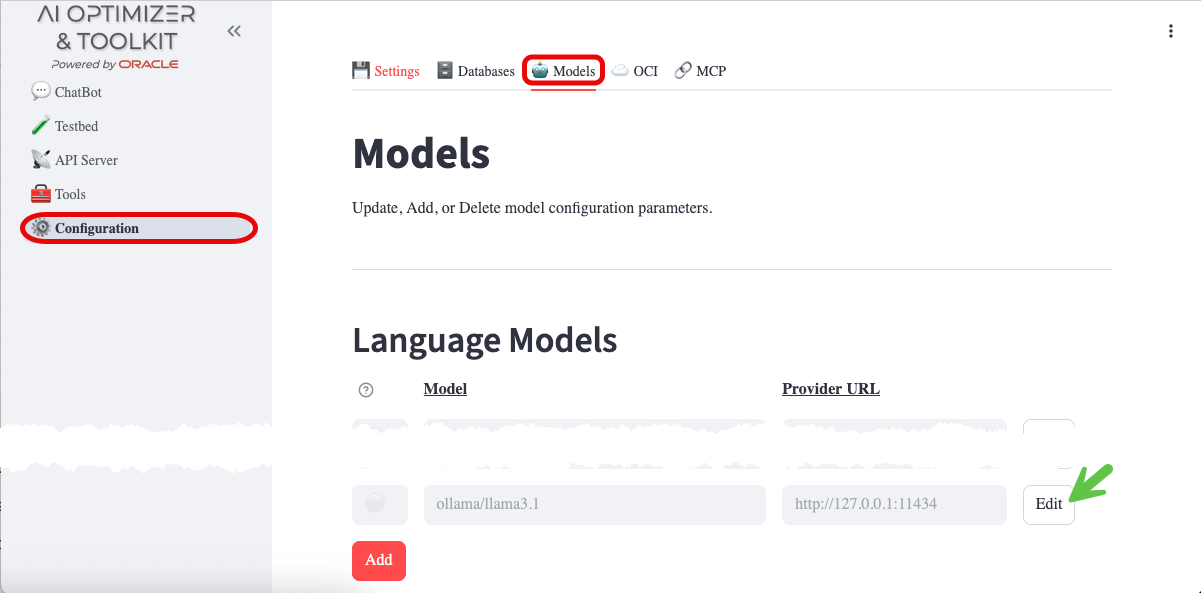
- Tick the Enabled checkbox, leave all other settings as-is, and Save
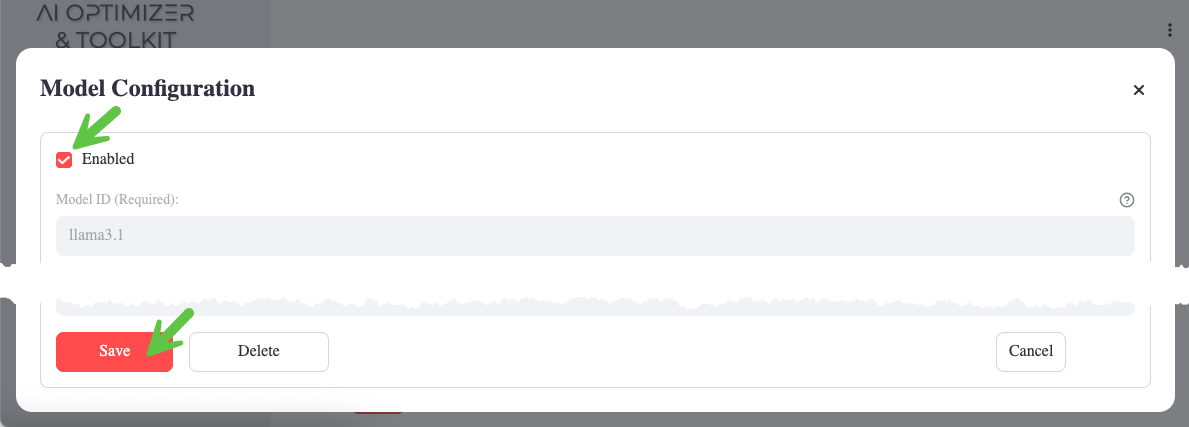 More information about configuring Language Models can be found in the Model Configuration documentation.
Say “Hello?”
Navigate to the ChatBot screen:
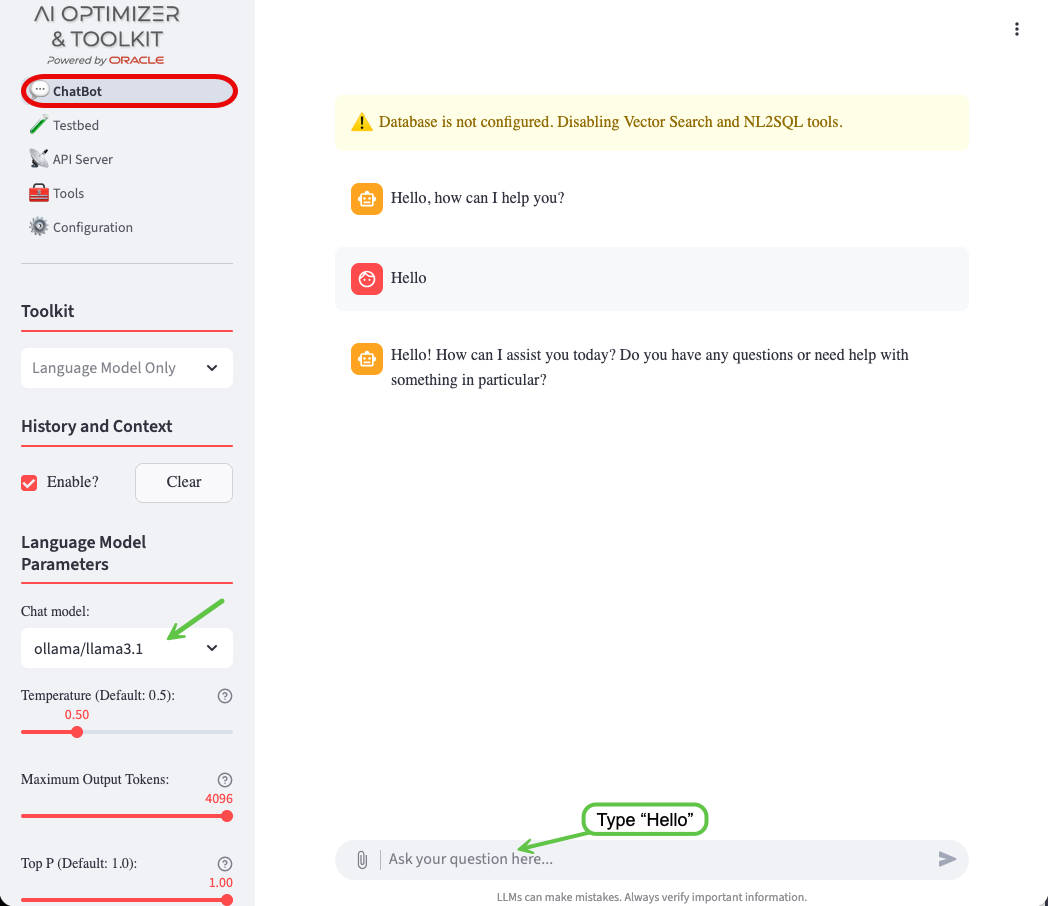
The error about language models will have disappeared, but there is a new warnings about the database. You’ll take care of that in the next steps.
The Chat model: will have been pre-set to the only enabled Language Model and a dialog box to interact with the Language Model will be ready for input.
Feel free to play around with the different Language Model Parameters, hovering over the icons to get more information on what they do.
You’ll come back to the ChatBot later to experiment further.
Configure the Embedding Model
To configure the On-Premises Embedding Model, navigate back to the Configuration screen and Models tab:
- Enable the
mxbai-embed-largeEmbedding Model following the same process as you did for the Language Model.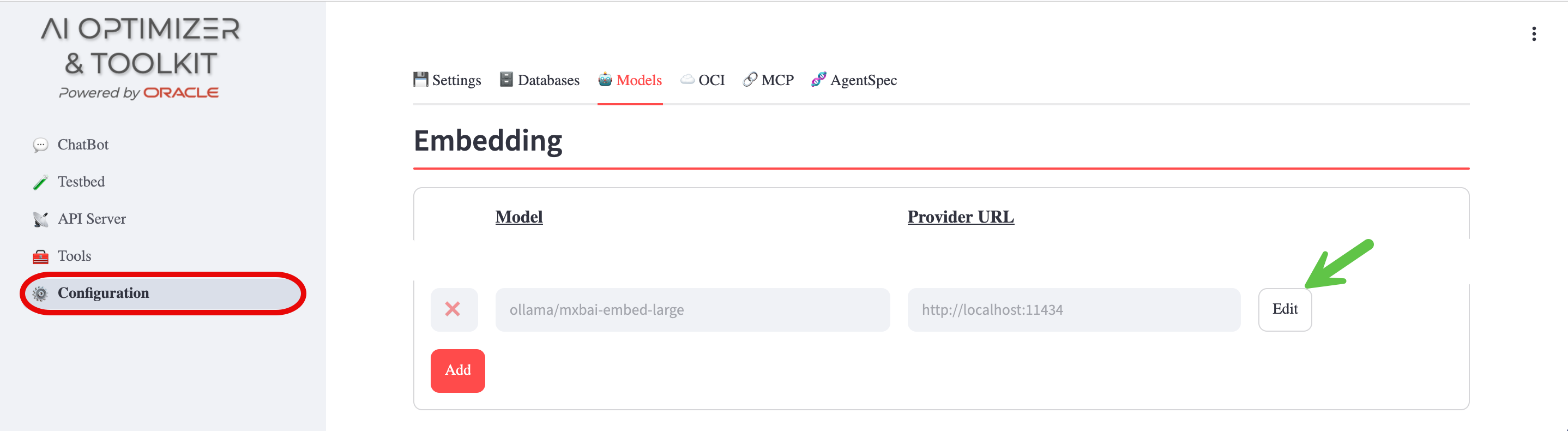
More information about configuring embedding models can be found in the Model Configuration documentation.
Configure the Database
To configure Oracle AI Database Free, navigate to the Configuration screen and Databases tab:
- Enter the Database Username:
WALKTHROUGH - Enter the Database Password for the database user:
OrA_41_OpTIMIZER - Enter the Database Connection String:
//localhost:1521/FREEPDB1 - Save Database
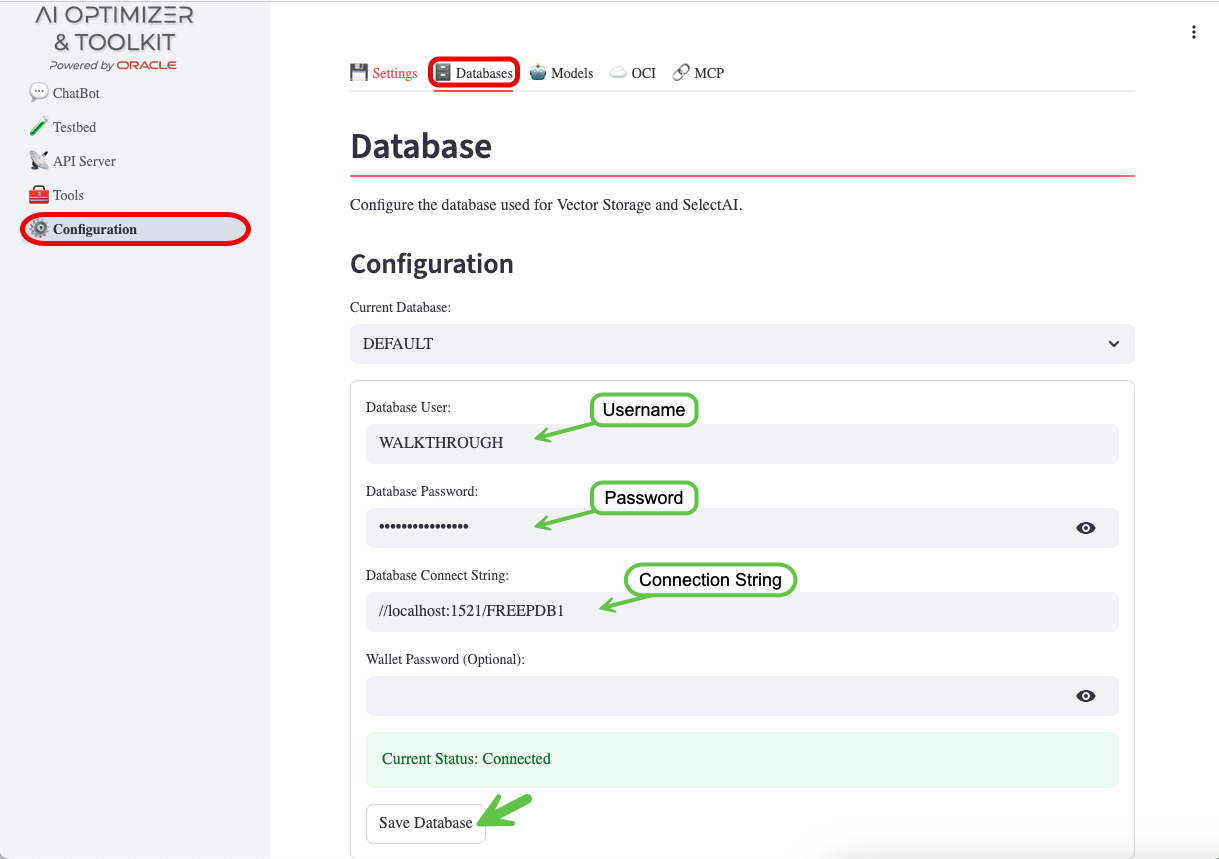
More information about configuring the database can be found in the Database Configuration documentation.
Split and Embed
With the embedding model and database configured, you can now split and embed documents for use in Vector Search.
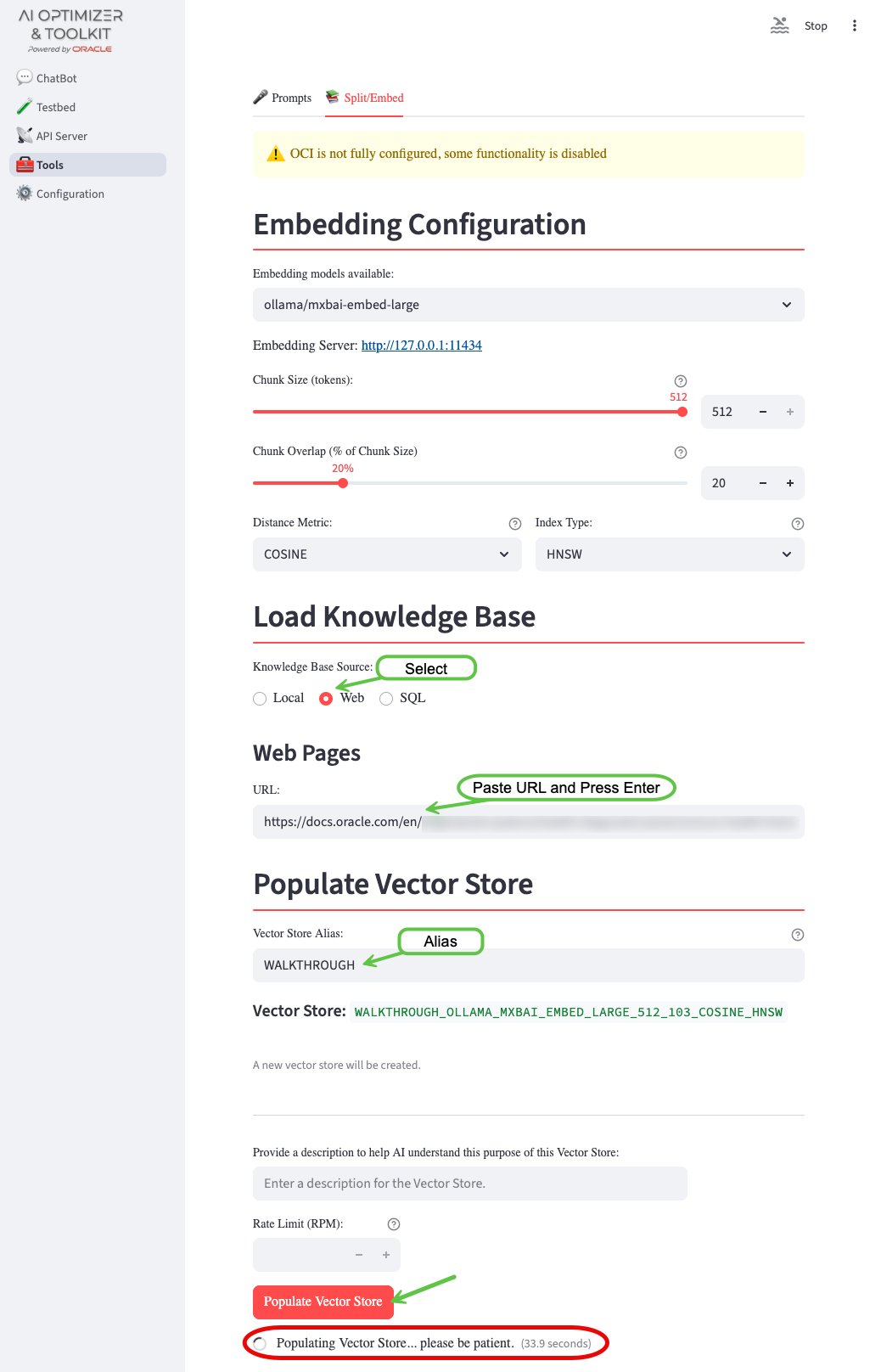
Navigate to the Tools screen and Split/Embed tab:
- Change the Knowledge Base Source to
Web - Enter the URL:
- Press Enter
- Give the Vector Store an Alias:
WALKTHROUGH - Click Populate Vector Store
- Please be patient…
Performance: Grab a beverage of your choosing…
Depending on the infrastructure, the embedding process can take a few minutes. As long as the “Populating Vector Store…” timer is running… it’s working.
Thumb Twiddling
You can watch the progress of the embedding by streaming the server logs: podman exec -it ai-optimizer-aio tail -f /app/src/apiserver_8000.log
Chunks are processed in batches. Wait until the logs output: POST ... HTTP/1.1" 200 OK before continuing.
Query the Vector Store
After the splitting and embedding process completes, you can query the Vector Store to see the chunked and embedded document:
From the command line:
Connect to the Oracle AI Database:
Query the Vector Store:
Experiment with Vector Search
With the AI Optimizer configured, you’re ready for some experimentation.
Navigate back to the ChatBot.
For this guided experiment, perform the following:
- Ask the ChatBot:
Responses may vary, but generally the ChatBot’s response will be inaccurate, including:
- Not understanding that there is a Oracle AI Database release. This is known as knowledge-cutoff.
- Suggestions of requiring unrelated software. These are hallucinations.
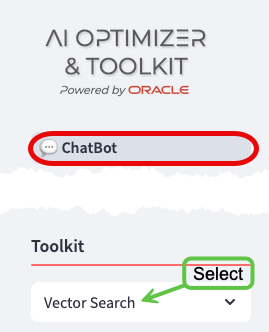
Now select “Vector Search” in the Toolkit options, enable “Prompt Rephrase”, and simply ask: Are you sure?
Performance: Host Overload…
With RAG enabled, all the services (Language/Embedding Models and Database) are being utilized simultaneously:
- The Language Model is rephrasing “Are you sure?” into a query that takes into account the conversation history and context
- The embedding model is being used to convert the rephrased query into vectors for a similarity search
- The database is being queried for documentation chunks similar to the rephrased query (AI Vector Search)
- The Language Model is completing its response using the documents from the database (if the documents are relevant)
Depending on your hardware, this may cause the response to be significantly delayed.
By asking Are you sure?, you are taking advantage of the AI Optimizer’s history and context functionality.
The response should be different and include a list of Operating System packages and maybe even an apology!.
Under “Vector Search Details” you should see the PDF source, the vector store tables searched, and the rephrased query.
What’s Next?
You should now have a solid foundation using the AI Optimizer.
Try a full Use Case
The Racing Championship use-case walks the same AI Optimizer through an end-to-end demo that shows the progressive value of NL2SQL, Vector Search, and combined-mode grounding against a synthetic racing championship dataset. See all Use Cases for more.
To take your experiments further, consider exploring:
- Turn On/Off/Clear history
- Experiment with different Language Models and Embedding Models
- Tweak Language Model parameters, including Temperature and Penalties, to fine-tune model performance
- Investigate various strategies for splitting and embedding text data, such as adjusting chunk-sizes, overlaps, and distance metrics
Clean Up
To cleanup the walkthrough “Infrastructure”, stop and remove the containers.