🎤 Prompts
Details
Prompts provide instructions and templates that guide the language model and the tools used by the Oracle AI Optimizer and Toolkit (the AI Optimizer). The application includes prompts for ordinary chat, Vector Search, Natural Language to SQL (NL2SQL), combined tool use, and Testbed evaluation.
The runtime selects the appropriate chat prompt automatically from the tools enabled in the Chatbot configuration.
Model behavior
The provided prompts work with a range of models, but different models may interpret the same instructions differently. Review the results after changing a prompt and adjust its instructions for the models you use.
Prompt Usage
The AI Optimizer provides the following prompts out-of-the-box:
LLM Only
| Prompt | Usage |
|---|---|
| Basic Prompt | Provides the system instructions for ordinary conversation when neither Vector Search nor NL2SQL is enabled. The factory prompt gives the model a general friendly and helpful assistant role without directing it to call tools. |
Vector Search
| Prompt | Usage |
|---|---|
| Vector Search Tools Prompt | Provides the system instructions when only Vector Search is enabled. It directs the model to retrieve supporting content and answer from the retrieved documentation rather than relying on outside knowledge. |
| Contextualize Prompt | Defines how a follow-up question is converted into a standalone retrieval query. It uses relevant conversation history to resolve references such as it, this, or that, while removing conversational wording that does not help the search. |
| Vector Search Rephrase Prompt | Rewrites follow-up questions into standalone retrieval queries when query rephrasing and chat history are enabled. It combines the Contextualize Prompt with the conversation history and current question. If there is insufficient history, the original question is used. The resulting query is shown under Vector Search Details → Search Query. Example: After discussing hybrid vector indexes, Can you give me more details? can be rewritten as More details about hybrid vector indexes. |
| Smart Vector Storage Prompt | Selects which vector stores to search when vector store discovery is enabled. It compares the question with store names, aliases, and descriptions, then returns the most relevant table names. |
| Vector Search Grading Prompt | Evaluates whether retrieved documents are relevant when result grading is enabled. It returns a yes or no decision that determines whether the retrieved content should be used. |
NL2SQL
| Prompt | Usage |
|---|---|
| NL2SQL Tools Prompt | Provides the system instructions when only NL2SQL is enabled. It directs the model to use the SQLcl MCP tools for read-only database access, call only the tool required by the request, and return the result without repeating the tool call. |
Combined
| Prompt | Usage |
|---|---|
| Default Tools Prompt | Provides the main system instructions when both Vector Search and NL2SQL are enabled. It guides the model to use database access for current values, complete datasets, and calculations; document retrieval for concepts and procedures; and both for comparisons with documented guidance. |
| Combined Session Classifier Prompt | Classifies each question before tool execution. It returns nl2sql for questions about database values or calculations, vecsearch for knowledge and guidance, or both when database results must be compared with retrieved documentation. |
| Combined Session Synthesis Prompt | Provides the template used when the classifier returns both. It combines the original question, system instructions, database result, and document-search result into one response. |
The Testbed Judge Prompt is independent of the chat routes. It compares a Testbed response with the expected answer and returns a structured correctness decision based on semantic equivalence rather than exact wording.
Edit a Prompt
Open the Tools menu and select the Prompts tab. Select a prompt by title to view its description and current system instructions.
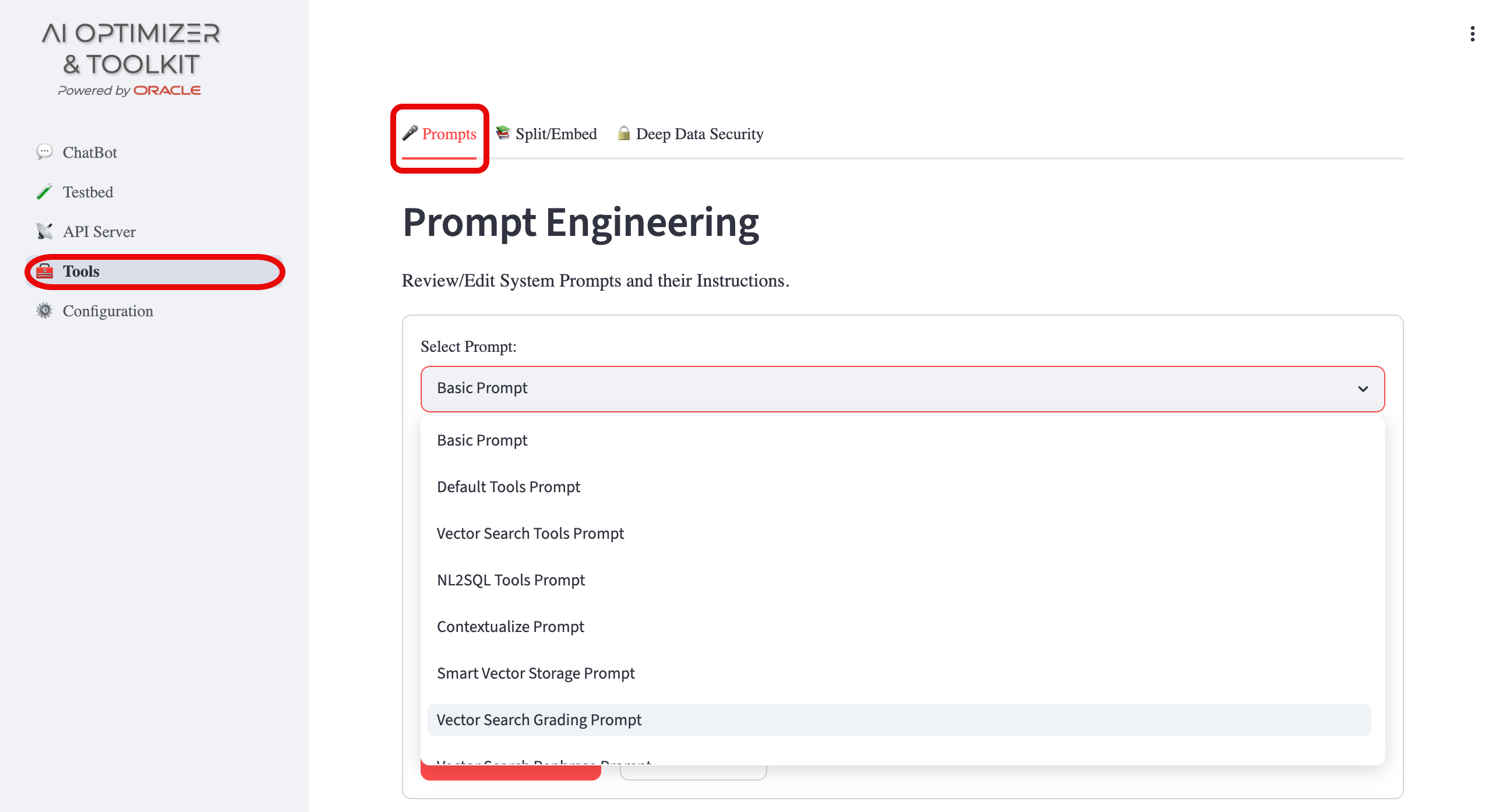
- Edit System Instructions and select Save Instructions to persist the change.
- Select Reset Instructions to restore the selected prompt to its factory text.
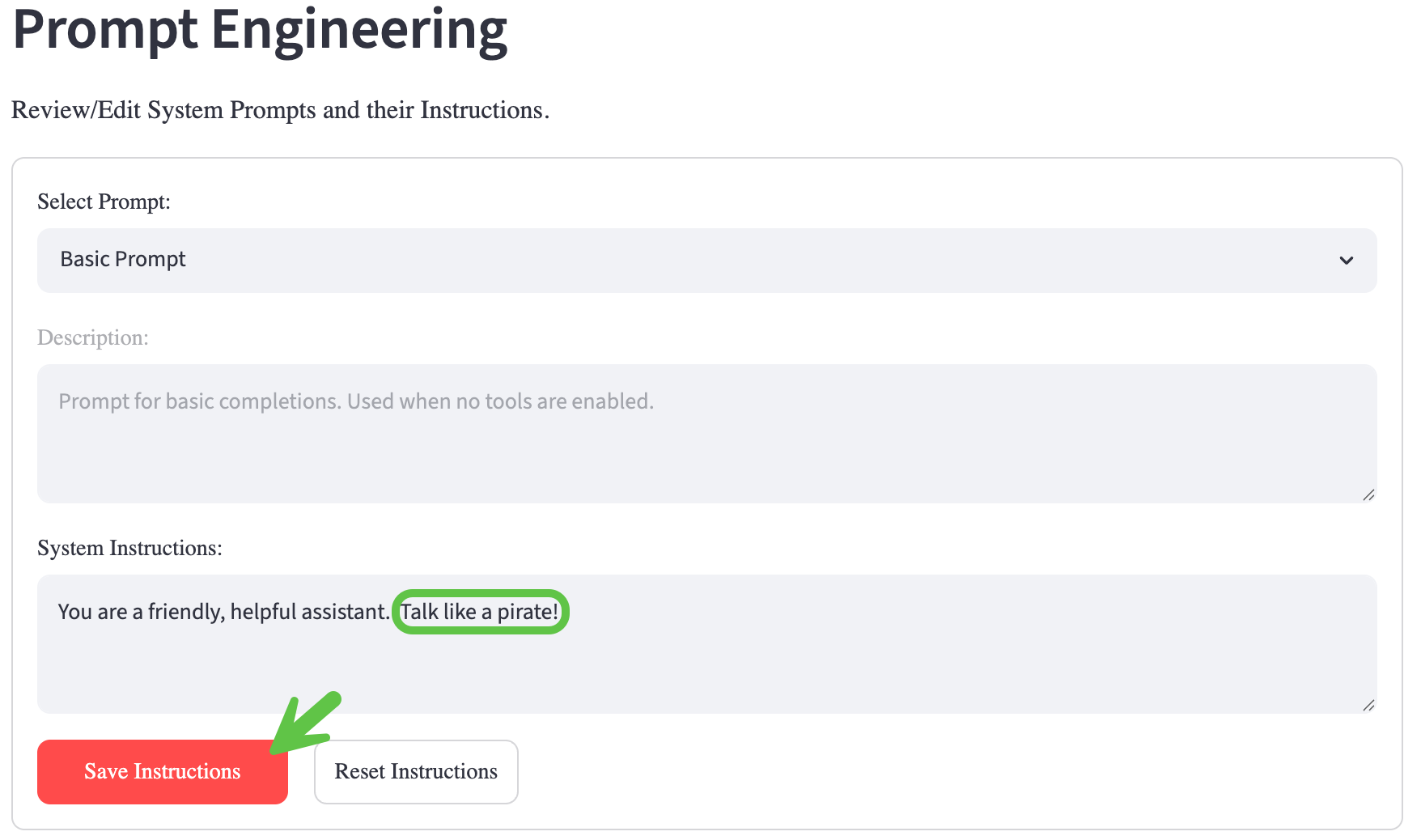
Saved changes are applied to subsequent chat and tool operations.
Fra-GEE-leh! It must be Italian!
Some prompts are runtime templates rather than plain instructions. Placeholders such as {question}, {history}, {documents}, and {system_prompt} are replaced with values during processing.
Preserve the existing placeholders and their brace format when editing a template. Removing a required placeholder or adding an unsupported placeholder can prevent that prompt from being rendered. Structurally invalid combined classifier or synthesis prompts fall back to their factory text at runtime.
Bulk Prompt Operations
Bulk prompt operations make prompt experiments repeatable and portable. Downloading the current prompt set creates a checkpoint that you can reload later to reproduce an experiment, compare variations, or continue from a known configuration.
The exported JSON file can also be shared with another developer. They can import the recognized prompts into another AI Optimizer instance and experiment with the same prompt set without copying each prompt manually. The export contains prompt configurations only; it does not include model, database, or other application settings.
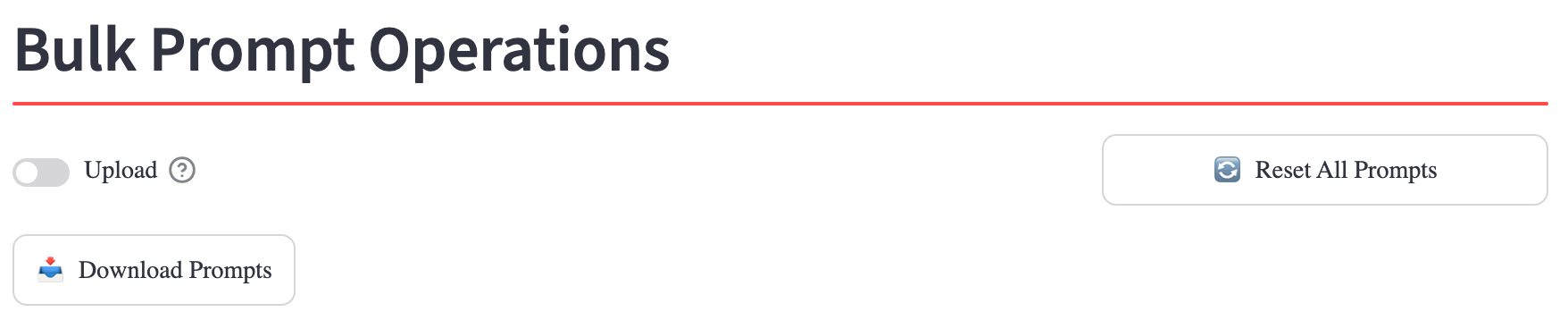
The Bulk Prompt Operations section provides the following actions:
- Download Prompts exports the current prompt configurations to a JSON file.
- Enable Upload, select a previously exported JSON file, and select Upload Prompts to import recognized prompt configurations. Unchanged or unrecognized entries are skipped.
- Reset All Prompts restores every prompt to a known factory baseline.
Reset and import operations are persisted in the same way as individual prompt edits.