Access Control
One AI Optimizer Server can serve many web client sessions, IDE and MCP clients, and external applications. Teams sharing one server use separate client sessions to keep conversations and working selections apart while using the same configured resources.
Choose a Deployment Boundary
- Trusted collaborators: Use one server and protect shared configuration controls with a password.
- External applications: Authenticate requests with the API key.
- Untrusted users or tenants: Use separate deployments with different API keys.
Client IDs and Access Boundary
A client ID selects a session; it does not authenticate a client or restrict access to a session.
Any client with the API key can use any client ID, including server. A client that knows or guesses another client ID can read that session's conversation history and submit requests using its settings.
Use client IDs to separate conversation context and client settings. To isolate untrusted tenants, run separate deployments of the AI Optimizer with different API keys.
Protecting the Shared Configuration
The password gate keeps unauthenticated browser sessions from changing shared configuration, including adding or deleting databases, editing models, resetting settings, and exporting configuration that contains secrets.
For shared or multi-client deployments, set a shared password to protect these controls using the AIO_CLIENT_PASSWORD environment variable to enable the gate.
When the password is set, the gate is enabled and protected controls are read-only until a user signs in.
When it is unset, the gate is disabled and all controls are accessible.
This check applies only to the web client. It does not replace or affect API Server authentication. External clients still authenticate with AIO_API_KEY. See Environment Variables.
What the gate covers
When a password is configured, the following remain read-only until sign-in:
- Configuration tabs: Databases, Models, OCI, MCP, and Settings
- The API Server page (including the server key)
- Stored connection fields (passwords and keys render as a redacted
••••••••placeholder rather than editable inputs) - Reset / Delete actions and configuration import/export
- Prompt Engineering edits
Personal workspace pages, including ChatBot, Tools, and Testbed, stay usable while signed out. Only controls that change shared configuration are protected.
Signing in and out
When the password is configured, a 🔐 Sign-in entry appears in the sidebar. Select it, or the inline Sign in link next to a protected control, to open the password dialog. Enter the shared password and press Enter.
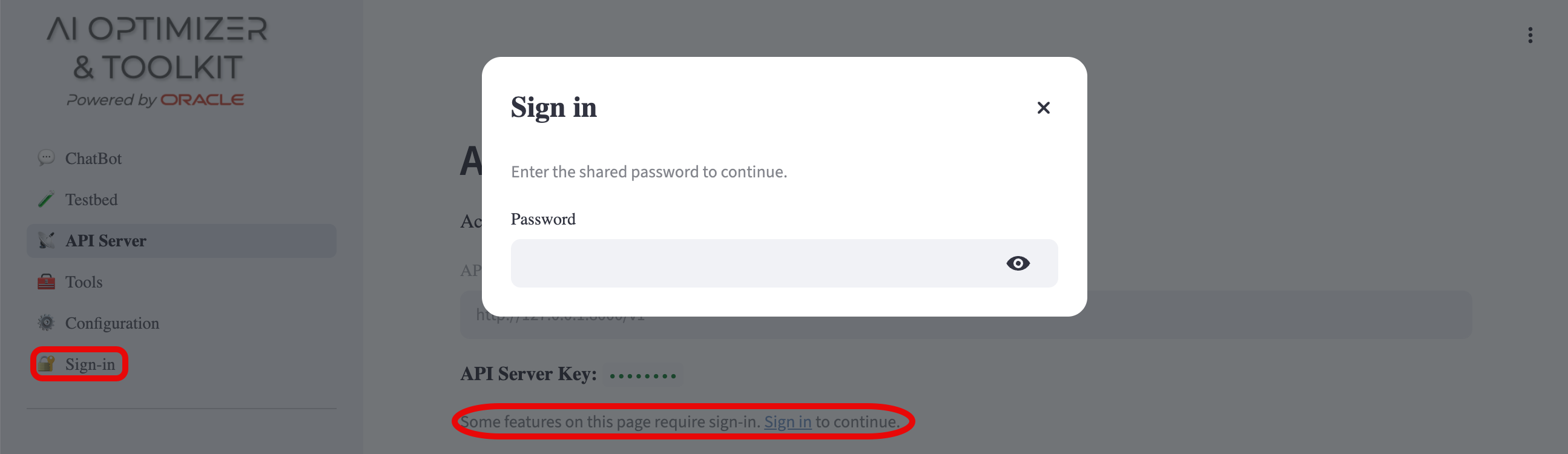
Authentication applies to one browser session. Signing in unlocks protected controls for that session only, and other browser sessions are unaffected. Once signed in, the entry becomes 🔓 Sign-out, which clears that session's authenticated state.
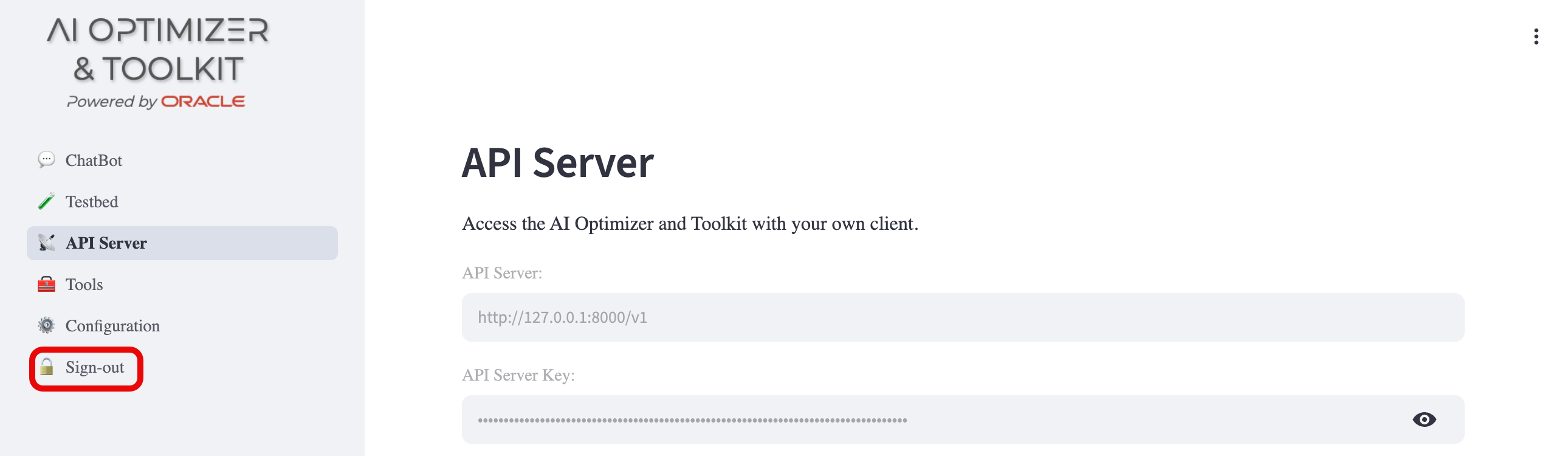
The password is shared. It protects shared controls, but does not identify the browser session that supplies it.