🎤 Prompts
Prompts provide instructions and templates for the model calls, agents, flows, and tools used by the AI Optimizer. The runtime selects the appropriate system prompt from the tools enabled in the Chatbot configuration.
The NL2SQL tools prompt requests read-only queries, but prompts do not control database authorization. The configured database account determines the SQL operations that can run.
The provided prompts work with a range of models, but different models may interpret the same instructions differently. Review the results after changing a prompt and adjust its instructions for the models you use.
Prompt Usage
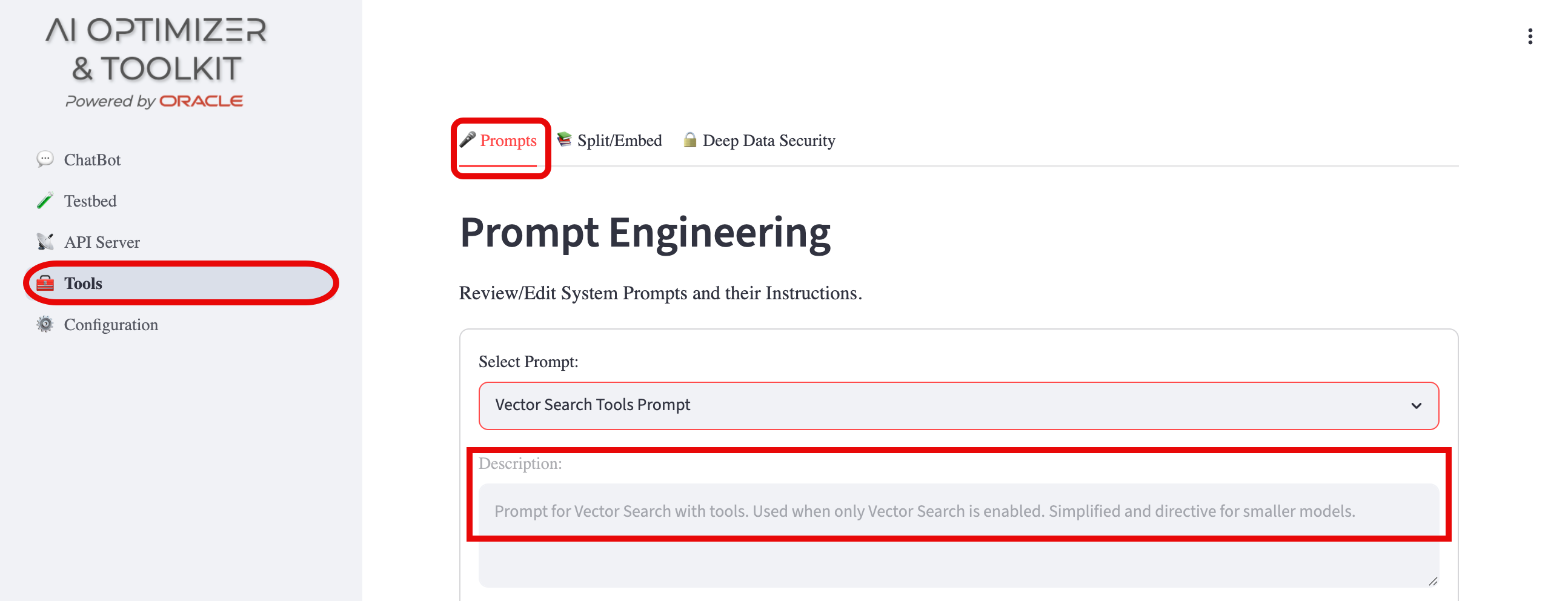
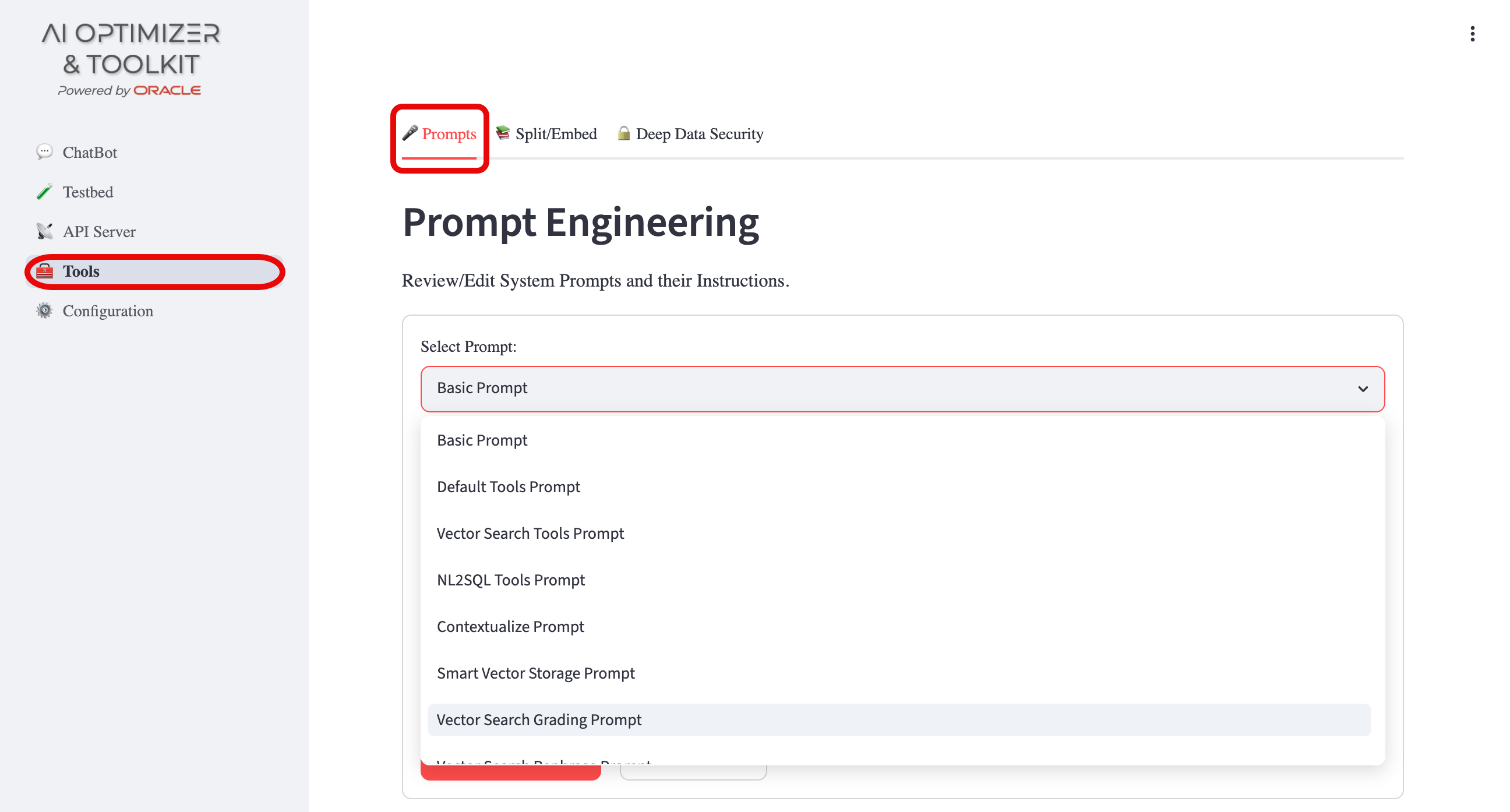
The AI Optimizer provides prompts out-of-the-box that can be customized to your needs. To view the prompts, navigate to Tools > Prompts. Each prompt provides a Description as how and when it is used.
Edit a Prompt
Navigate to Tools > Prompts. Select a prompt by title to view its description and current system instructions.
- Edit System Instructions and select Save Instructions to persist the change.
- Select Reset Instructions to restore the selected prompt to its factory text.
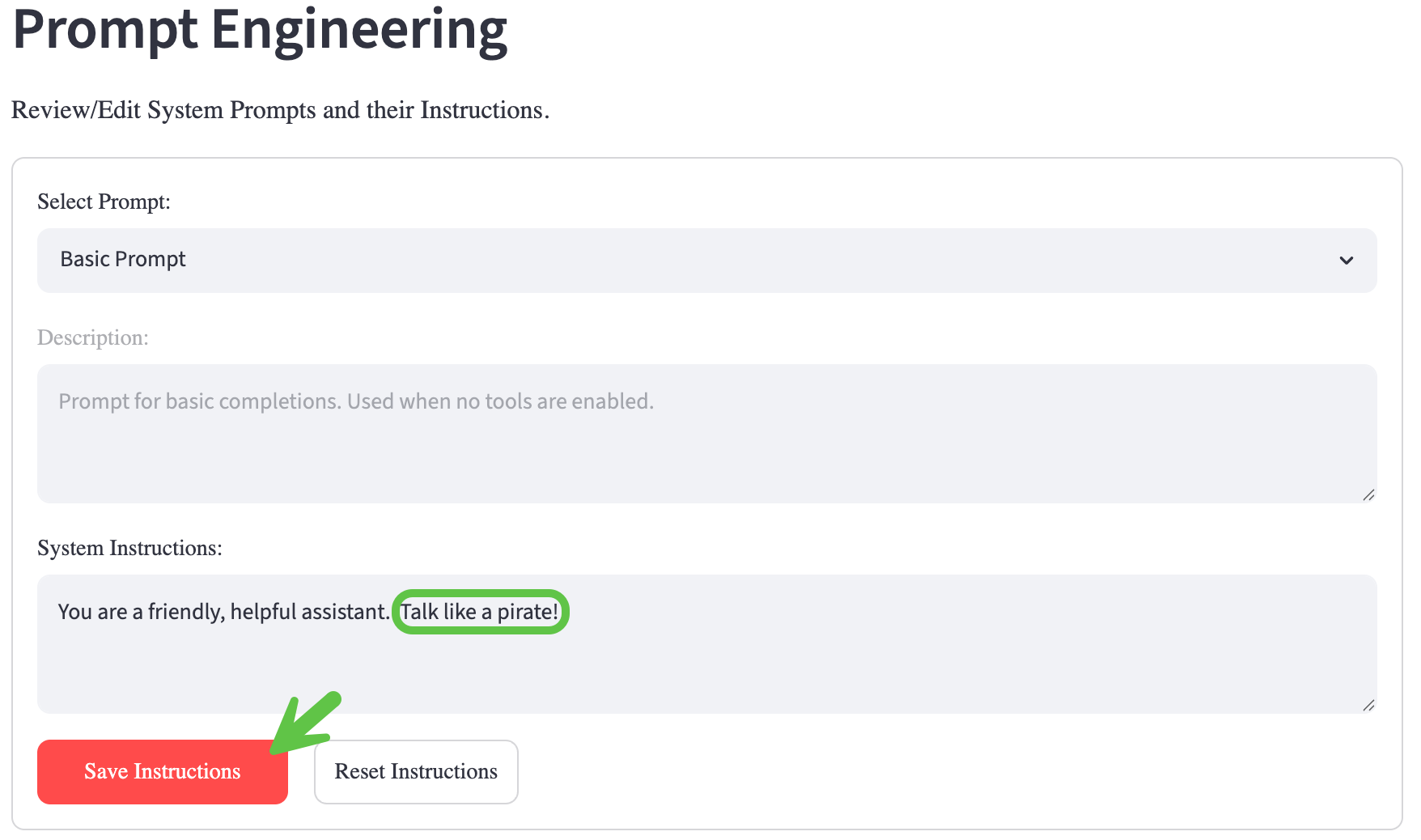
Saved changes are applied to subsequent chat and tool operations.
Some prompts are runtime templates rather than plain instructions. Placeholders such as {question}, {history}, {documents}, and {system_prompt} are replaced with values during processing.
Preserve the existing placeholders and their brace format when editing a template. Removing a required placeholder or adding an unsupported placeholder can prevent that prompt from being rendered. Structurally invalid combined classifier or synthesis prompts fall back to their factory text at runtime.
Bulk Prompt Operations
Bulk prompt operations make prompt experiments repeatable and portable. Downloading the current prompt set creates a checkpoint that you can reload later to reproduce an experiment, compare variations, or continue from a known configuration.
The exported JSON file can also be shared with another developer. They can import the recognized prompts into another AI Optimizer instance and experiment with the same prompt set without copying each prompt manually. The export contains prompt configurations only; it does not include model, database, or other application settings.
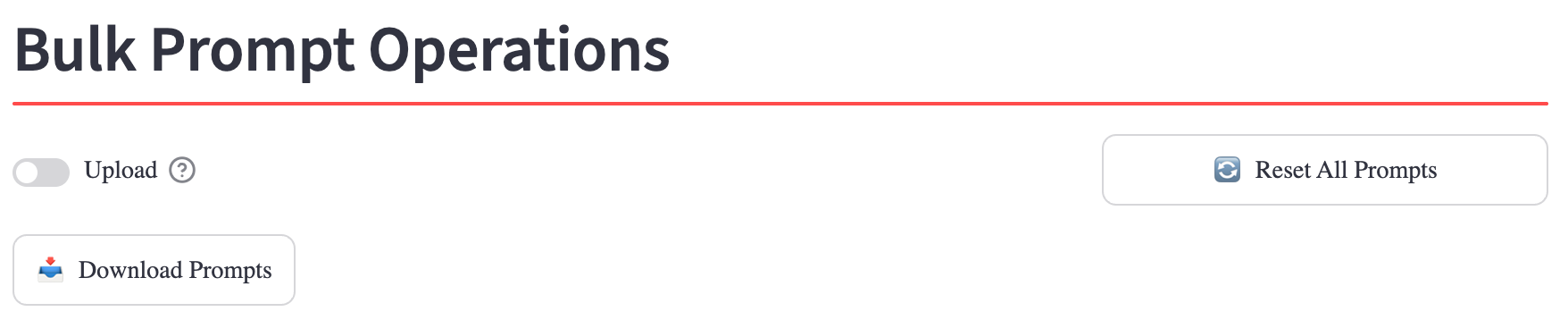
The Bulk Prompt Operations section provides the following actions:
- Download Prompts exports the current prompt configurations to a JSON file.
- Enable Upload, select a previously exported JSON file, and select Upload Prompts to import recognized prompt configurations. Unchanged or unrecognized entries are skipped.
- Reset All Prompts restores every prompt to a known factory baseline.
Reset and import operations are persisted in the same way as individual prompt edits.