Infrastructure as Code
The AI Optimizer includes OpenTofu infrastructure as code (IaC) in the opentofu/ directory for deploying into Oracle Cloud Infrastructure (OCI). You can either deploy the IaC from OCI Resource Manager or from a local checkout using OpenTofu or Terraform.
The stack provisions compute, networking, load balancer, Oracle AI Database resources, and the AI Optimizer platform. It can provision a new Autonomous Database or connect the deployment to an existing Autonomous Database or other Oracle database.
OCI Resource Manager
To get started with OCI Resource Manager, select Deploy to Oracle Cloud:

Terms
After signing in to OCI, review and accept the terms.
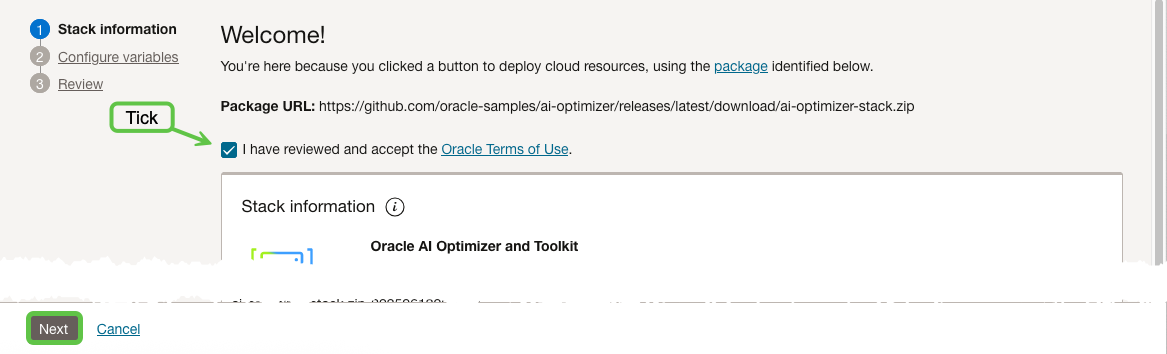
Select Next to configure variables.
Deployment Type
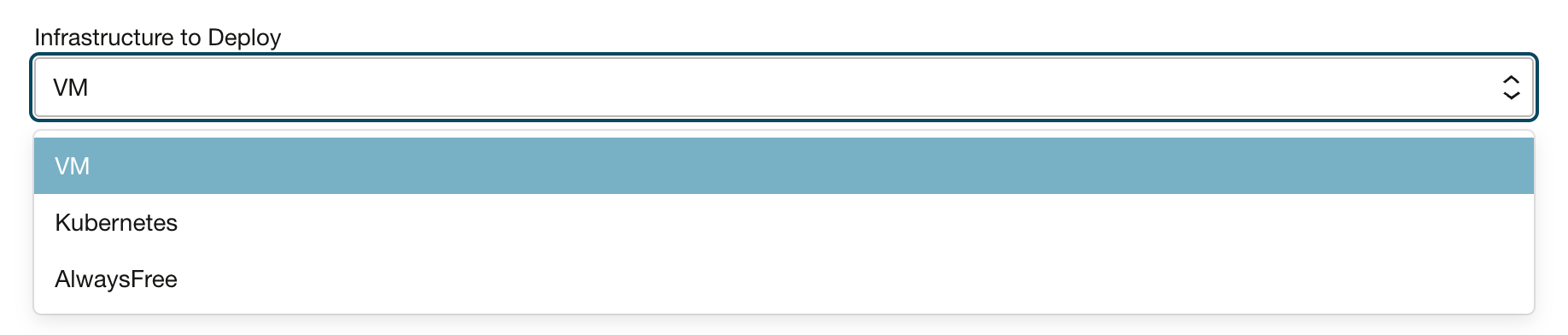
Choose the deployment type that suits your use case, then select it under Infrastructure to Deploy.
| Deployment | Use case |
|---|---|
| AlwaysFree | An Always Free-compatible VM deployment with a free-tier Autonomous Database. |
| VM | An all-in-one Server and Client deployment for development or small-scale use. |
| Kubernetes | Separate Server and Client deployments on Oracle Kubernetes Engine (OKE). |
Options
The available compute, database, networking, and load-balancer options depend on the selected deployment type. The following sections highlight the common configuration choices.
Models and Compute
VM deployments can use a GPU shape. Kubernetes deployments can add a GPU node pool. A VM deployment can also install Ollama and pull the default models; CPU-only Ollama deployments are intended for development use. For model configuration after deployment, see AI Models.
GPU deployments install Ollama and pull the default models. For a CPU VM deployment, select Install Ollama to do the same; otherwise, configure a model before using model-dependent features.
Network
Access Control for Application GUI controls browser access to the Client, and Access Control for Application API Server controls direct access to the Server API. Both values accept comma-separated CIDR ranges. Their default, 127.0.0.0/8, does not permit access from external client networks.
The default access-control values block external clients. Before using the Client or Server, replace them with the smallest CIDR ranges required for your client networks. For an individual workstation, use a single-host /32 range.
To use the Client, set Access Control for Application GUI under Load Balancer Options to the smallest CIDR ranges required for your users. If users or applications call the Server API directly, also set Access Control for Application API Server.
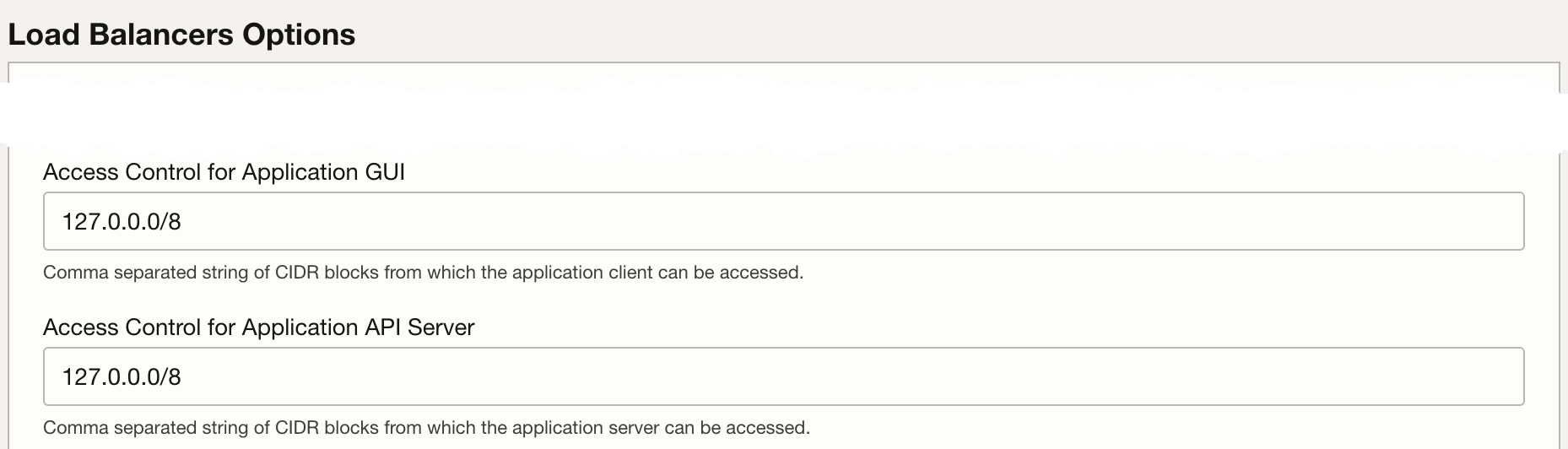
For example:
192.168.1.0/24,10.0.0.0/16,203.0.113.42/32
Database
To provision a new Autonomous Database, leave Bring Your Own Oracle Database? unselected. To connect to an existing Autonomous Database or other Oracle database, select it, choose the value under Bring Your Own Database - Type, and provide its connection details.
Kubernetes API Endpoint
For OKE, leave API Endpoint Access Control empty when deploying through Resource Manager.

TLS
The stack terminates TLS at the load balancer. Set TLS Termination to one of the following:
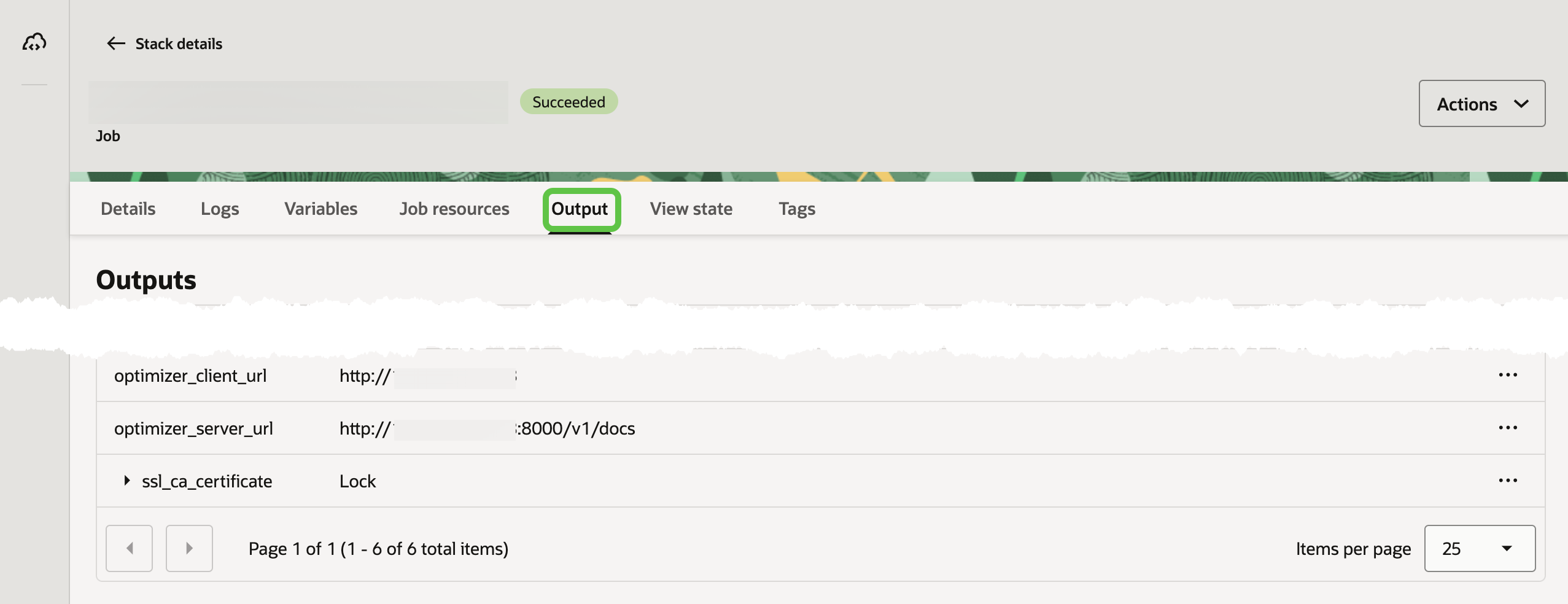
nonefor HTTP only.self-signedto generate a certificate. Retrieve the sensitivessl_ca_certificatestack output and add it to the trust store of browsers, operating systems, or other clients that connect to the deployment.providedto supply PEM-encoded certificate and private-key content.
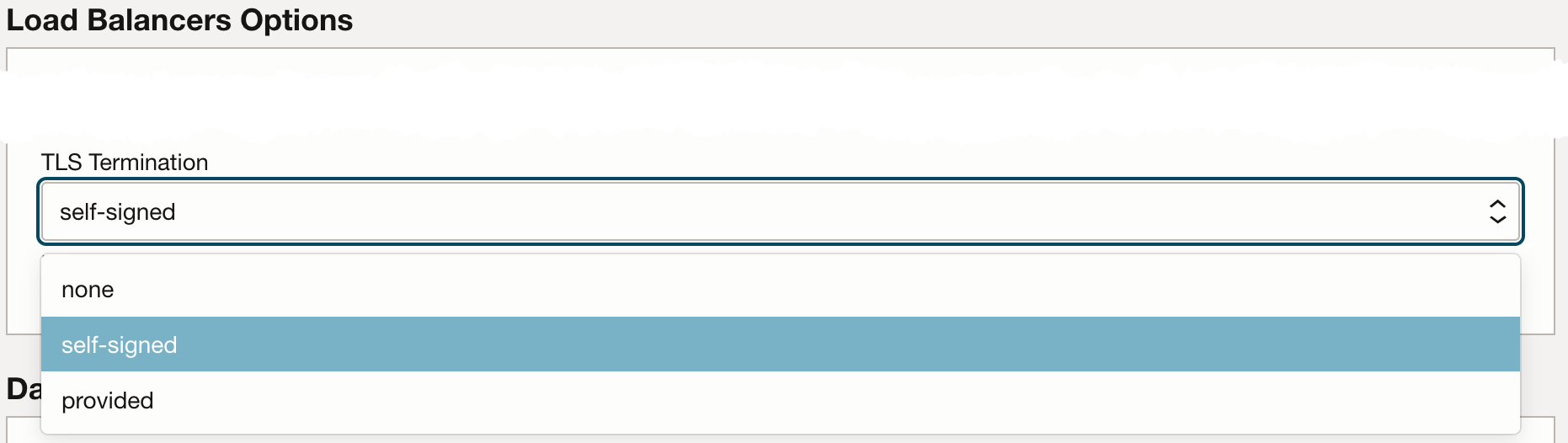
For the application's other TLS deployment options, see TLS / HTTPS.
Review and Apply
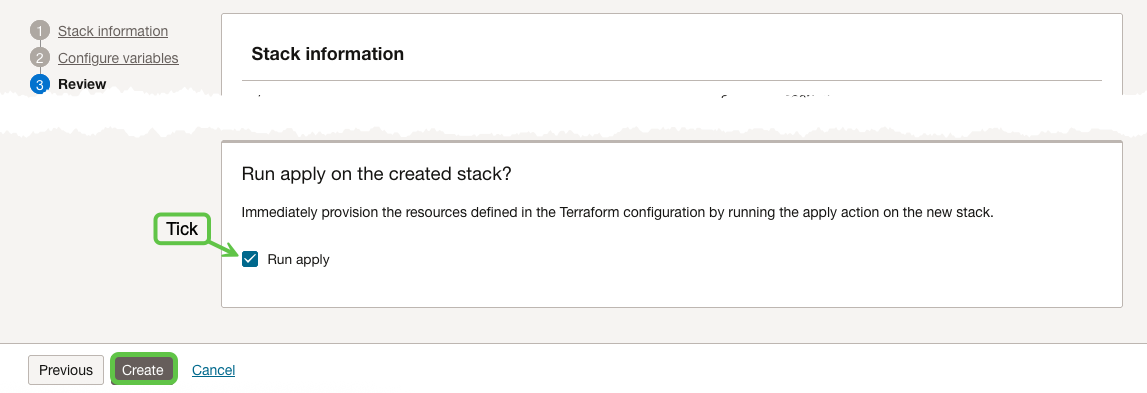
Review the plan and costs, then select Apply to create the stack.
Outputs
After the apply job succeeds, use the stack outputs to open the Client or Server API URL. The Server output points to its OpenAPI documentation. Initial image pulls and application startup can take several minutes after the infrastructure job completes. If a URL is not ready, wait a few minutes and try again.
Clean Up
To remove a Resource Manager deployment, open its stack in OCI and select Destroy.
OpenTofu
Use OpenTofu or Terraform 1.5 or later when deploying from a local checkout. Before continuing, follow the OpenTofu README to configure prerequisites and OCI credentials. Then start from the example closest to your deployment:
| Example | Deployment |
|---|---|
vm-new-adb.tfvars | VM with a new Autonomous Database |
vm-byo-adb.tfvars | VM with an existing Autonomous Database |
vm-byo-other-db.tfvars | VM with another Oracle database |
k8s-new-adb.tfvars | OKE with a new Autonomous Database |
k8s-byo-other-db.tfvars | OKE with another Oracle database |
always-free.tfvars | Always Free VM and Autonomous Database |
If you choose an OKE example, set k8s_api_endpoint_allowed_cidrs to a reachable source CIDR, typically your public IP address with a /32 suffix.
The example files contain placeholders. Copy one to terraform.tfvars, replace the OCI and database values, then run:
cd opentofu
cp examples/vm-new-adb.tfvars terraform.tfvars
tofu init
tofu plan
tofu apply
Clean Up
To remove a local deployment, run:
cd opentofu
tofu destroy
Review the destruction plan before confirming it. This removes resources managed by the stack.