💾 Settings
Details
Once you are happy with the specific configuration of your AI Optimizer, the settings can be exported in .json format. Those settings can then be loaded in later to return the AI Optimizer to your previous configuration. The settings can also be imported into another instance of the AI Optimizer.
View and Download
To view and download the AI Optimizer configuration, navigate to the Configuration page and Settings tab:
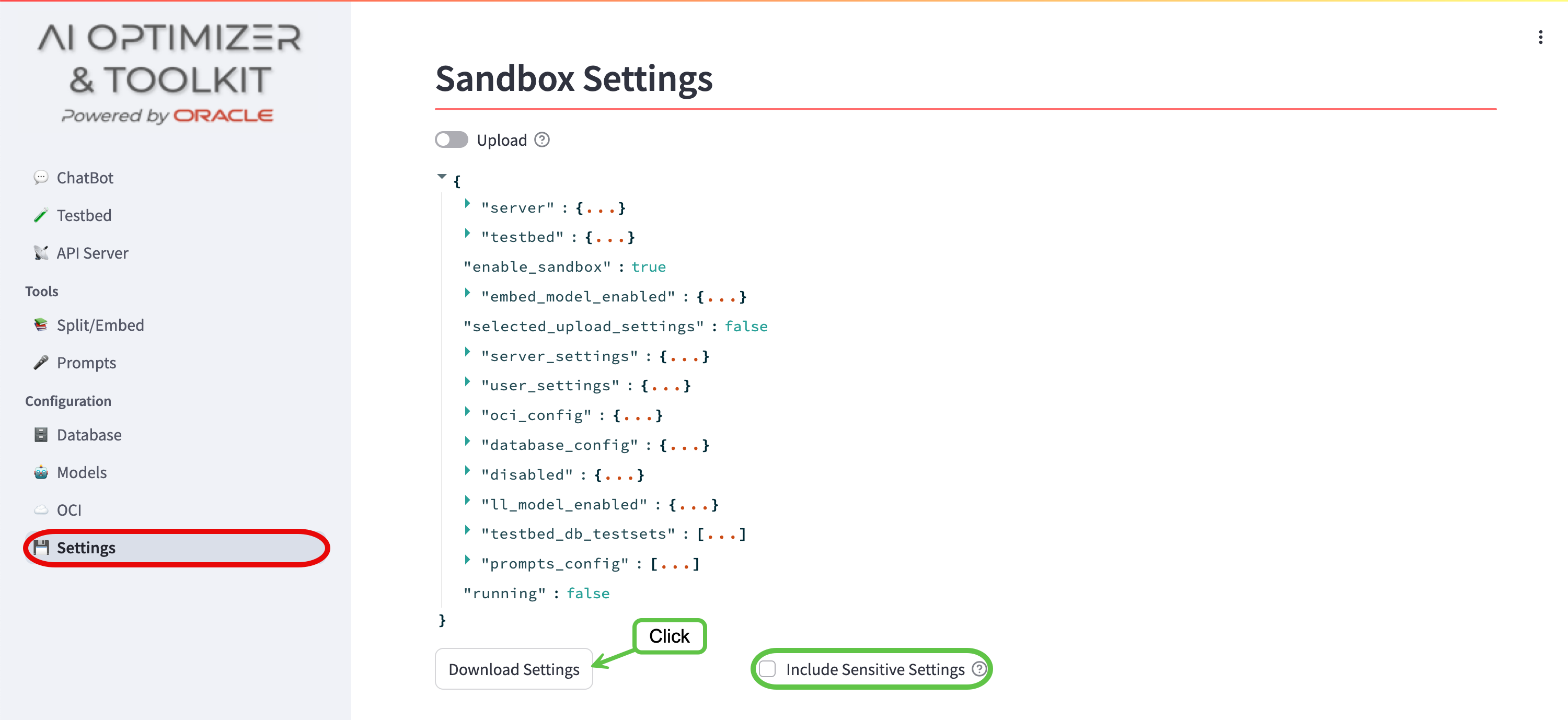
Settings contain sensitive information such as database passwords and API Keys. By default, these settings will not be exported and will have to be re-entered after uploading the settings in a new instance of the AI Optimizer. If you have a secure way to store the settings and would like to export the sensitive data, tick the “Include Sensitive Settings” box.
Upload
To upload previously downloaded settings, navigate to Configuration -> Settings:
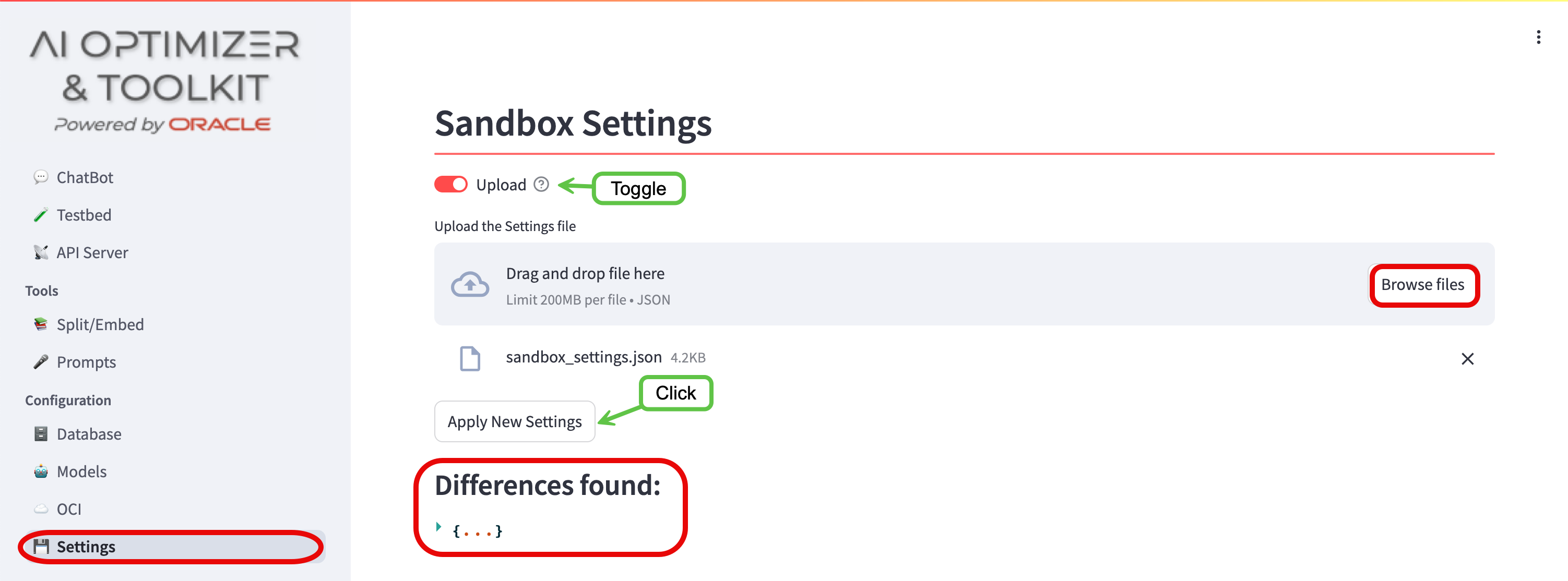
- Toggle to the “Upload” button
- Browse files and select the settings file
If differences are found, you can review the differences before clicking “Apply New Settings”.
Source Code Templates
You can download basic templates from the console to help expose the RAG chatbot defined in the chat console as an OpenAI API–compatible REST endpoint.
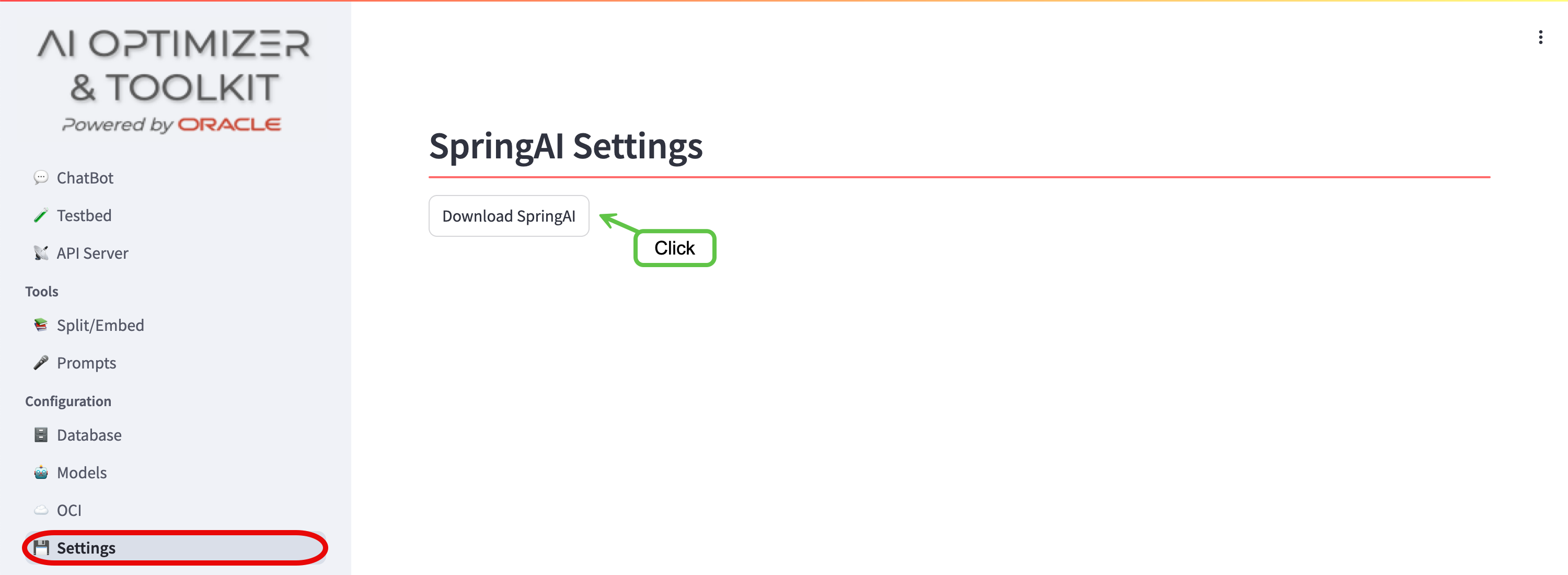
If your configuration includes either Ollama or OpenAI as providers for both chat and embedding models, the Download Spring AI button will be displayed.
No Mixing!
Mixed configurations, like Ollama for embeddings and OpenAI for chat completion are not currently allowed.
For more information, about the AI Optimizer and downloadable templates:
- SpringAI: please view the Advanced - SpringAI documentation.